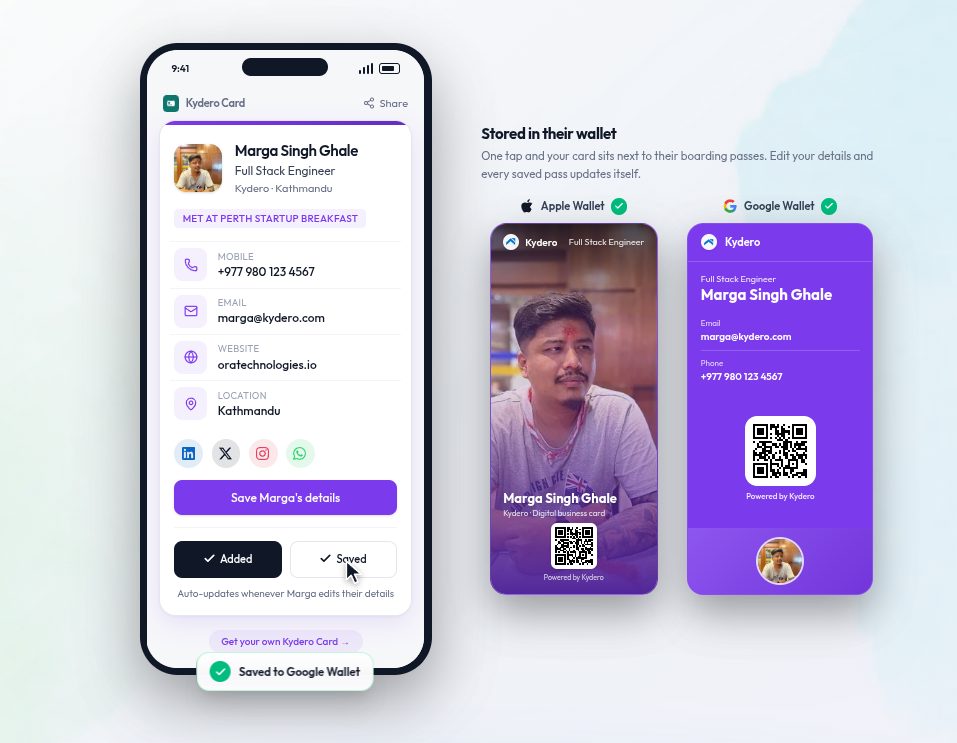
Paper business cards have one job and they do it badly. They get handed over, they get a polite glance, and most of them end the week in a drawer or a bin. The person you met has your name and no reason to remember you. You have nothing at all, because they did not hand one back.
Kydero started as a project and CRM tool. The digital card is the part that people talk about, because it fixes that exchange at both ends. This post walks through what a Kydero card actually is, what happens when someone scans it, and how it ends up in your CRM without anyone typing.
What a card is
A Kydero card is three things that share one identity.
A public page. Every card has a short link like
kydero.com/c/your-name. It shows your name, role, company, photo, phone, email, address and social links, and it works in any browser without an app.A QR code. The code points at that page. It is always plain black on white, because a tinted QR code that matches your brand looks lovely and fails to scan in half the phones it meets.
A wallet pass. The same card can be added to Apple Wallet or Google Wallet. It sits next to your boarding passes and loyalty cards, so at an event you double-click the side button and your card is on the screen before the other person has found theirs.
The pass is not a picture of the card. It is a live object. Change your phone number or your title in Kydero and every pass that was ever added updates itself. Nobody reprints anything.
What happens when someone scans it
They see your page. From there, three things are one tap away.
Save the contact
The page offers a proper contact file, with your photo, work phone, address and social profiles filled in the way their contacts app expects. It shows up as a real entry, not as a URL they have to open again later.
Add your card to their wallet
If they want to keep you around, they add your pass to their own wallet. Now your card is in their pocket, and it keeps up with your details the same way yours does.
Share their details back
This is the part paper never managed. The page has a short form: name, email, phone, and an optional message. When they fill it in, the exchange has happened in both directions, and their side lands in your workspace immediately.
The offline pass
A QR code is a link, and a link needs a connection. Conference halls, basements and trade-show floors are exactly where connections fail. So every Kydero card has a second pass, the offline one, whose QR code contains your contact details directly. The scanning phone reads a contact card straight out of the code and never touches the network. You pick which pass to carry, or carry both.
From scan to CRM
Every capture from your card goes into Kydero CRM, and the card decides where. This matters more than it sounds.
A bare fill, name and email with no message, becomes a contact. It sits on your contacts board with a one-click "promote to lead". It does not clutter your pipeline with people who only wanted your number.
A fill with a message, or a capture from a card set to event mode, becomes a lead in the pipeline that card is pointed at.
Different cards can feed different pipelines. Your sales card lands in Sales. The recruiting card you carry to a university fair lands in Candidates. Same workspace, no sorting afterwards.
Once a lead exists, it is an ordinary CRM lead: stages, notes, appointments with a Meet link, reminders, and, if you use the project side of Kydero, a project that spins up when the deal is won. The card is the front door. Everything behind it is the same house.
Why the card is what people remember
There are a lot of CRMs. There are a lot of task boards. Most of them are fine, and most buyers cannot tell them apart from the outside. A card is different. It is the one part of a work tool that a stranger sees, holds, and reacts to. When someone at an event says "wait, how did you do that?", that is the moment a product gets talked about, and no pipeline view has ever produced it.
That is why we treat the card as the product's front door rather than a feature in a list. It is the piece you can show in ten seconds, the piece that works for a one-person consultancy and a fifty-person sales team, and the piece that quietly fills the CRM behind it.
Getting one
Cards live under Cards in your workspace. Create one, add a photo and your details, and you have a page and a QR code immediately. The Apple and Google Wallet buttons appear on the card page. On iPhone, open the page in Safari for the Add to Wallet sheet; Google Wallet works from any browser on Android.